Copying New Tracks to the
OHP-6000 and OHP-6500
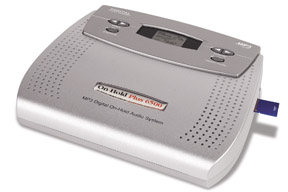
IMPORTANT: Before connecting the USB Cable from the PC to the Unit, please make sure the power switch on the player is in the OFF position.
Step 1:
Download your on hold message and music recording(s) per the instructions in the email you received from GO On Hold and save them in MY DOCUMENTS or any folder where you can easily find your recordings.
Step 2:
Plug USB cable (square socket) into the USB jack on the back panel of the player.
Step 3:
Plug the other end of the USB cable (rectangular) into the USB port on the back of the PC.
Step 4:
Connect the power supply to the 9VDC jack on the player.
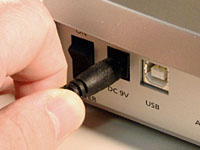
Step 5:
Switch the power to the ON position.
Step 6:
Once connected, the player will show up as a removable drive (i.e. Drive F) in the MY COMPUTER window on your PC. This represents the on-board memory of the player (64MB). The MY COMPUTER window is where you can manage the content on your player. From this window you can add or delete files that are stored on your player.
Step 7:
Select and delete all files currently stored on your player. The player window should now be empty. Go to the folder where you downloaded and saved your on hold message and music recordings. Select your recording(s) and copy/paste them to the empty player window.
Step 8:
After your on hold message and music recordings appear in the player window, safely disconnect the USB cable from your computer. Your player is now ready to be connected to your phone system.
Need help? Please Click Here for a user manual or call GO On Hold at 1-800-963-6968.